
Zero-day vulnerabilities are security flaws that are exploited before a patch is available. When these vulnerabilities affect enterprise applications, they pose a significant risk to your systems.
In this article, I want to explain how to prepare for zero-day threats on GlassFish and Payara servers, and what steps to take if an exploit occurs in your environment.
Preparing Your Servers for Zero-Day Threats
I believe the best way to handle a zero-day vulnerability is to minimize your attack surface
before it happens. This involves keeping your software updated, securing your
configuration, and monitoring your systems.
Keep Software Updated
Applying updates is the most effective way to protect your servers.
- Server Updates: We at OmniFish make sure that Eclipse GlassFish releases a new version every month, and that they include critical security fixes. We also regularly release patches for our builds of Payara Community. I recommend applying these updates as soon as possible.
- JDK Versions: Run the latest patch version of a supported JDK. GlassFish . runs on all LTS releases of Java +, and GlassFish runs on all LTS releases of Java +. Including the latest Java . This ensures you can receive vital security updates for the JVM.
- Operating System: Keep your operating system patched and up to date, including all the applications installed on it.
Secure Your Configuration
A secure configuration reduces the number of ways an attacker can access your system.
- Use the Web Profile: If your application does not require the full Jakarta EE platform, use the GlassFish “Web Profile” distribution. It is smaller (around 75 MB compared to 119 MB for the full platform) and has fewer components that could be exploited.
- Enable Secure Admin: Always enable Secure Admin to encrypt administrative traffic. Use a strong password for your admin account. For detailed instructions, refer to the Managing Administrative Security section of the GlassFish Security Guide.
- Disable the Admin Console: The Admin Console in GlassFish and Payara is not secure by current security standards. Disable it if you do not need it. If you must keep it running, expose it only via an SSH tunnel or a VPN, and only for the necessary time
- Run as an Unprivileged User: Do not run GlassFish as the root (admin) user. Create a dedicated, unprivileged user account for the server process.
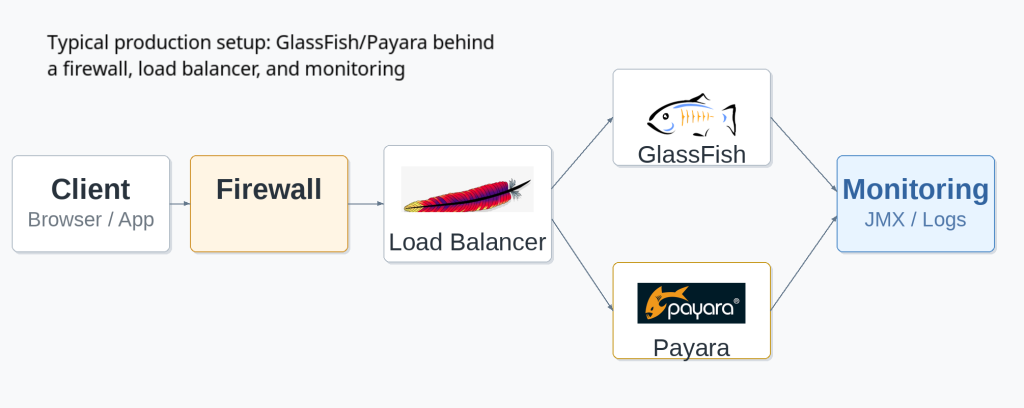
- Enforce HTTPS: Use a CA-signed certificate to enforce HTTPS. Do not use self-signed certificates in a production environment. Alternatively, use a load balancer in front of GlassFish, with a CA-signed certificate in the load balancer.
- Set File Permissions: Use umask 066 to secure sensitive files, such as keystores and configuration files in the domain directory, ensuring only the owner has read and write access. See the GlassFish Security Guide for more on protecting sensitive files.
Monitor System Activity
Monitoring helps you detect unusual activity early.
- Enable Audit Logging: Turn on audit logging to capture a trail of all authentication and authorization decisions. To enable it, check the “Audit Logging Enabled” checkbox on the Security page in the Admin Console and set the auditOn property for the active audit module to true. You can also set detailed log levels for the jakarta.enterprise.system.security.ssl and jakarta.enterprise.system.core.security modules — anything from SEVERE to FINEST, though finer levels produce larger log files. See the GlassFish Security Guide for details.
- Use Real-Time Monitoring: Monitor your JVM over the standard JMX protocol using popular monitoring tools like Prometheus, Zabbix, or Icinga.
- Configure Log Rotation: Set up log rotation and limit the number of archived log files to prevent your disk from filling up during a high-traffic event, such as a denial-of-service attack.
Responding to a Zero-Day Exploit
If a zero-day exploit occurs, you must act quickly to contain the issue.
1. Isolate the System
When you confirm a compromise, stop the affected domain immediately using the command: as-install/bin/asadmin stop-domain [domain_name].
Next, restrict network access to the server. GlassFish and Payara use several ports that you should block or restrict via your firewall:
| Port | Service | Action |
| 4848 | Administration Console | Block external access; allow only trusted IPs |
| 8080 | HTTP Listener | Disable or restrict via firewall |
| 8181 | HTTPS Listener | Disable or restrict via firewall |
| 3700 / 3820 | IIOP / IIOP over SSL | Block if remote EJB access is not required |
| 7676 | JMS Provider | Block if messaging services are not required |
2. Apply Temporary Mitigations
Once the system is isolated, apply temporary fixes to reduce your exposure.
- Disable Unused Components: If the vulnerability targets a specific service, such as Metro, JMS, or the EJB container, disable or uninstall it. Contact OmniFish for free advice on how to disable vulnerable components.
- Switch to Web Profile: If you are using the full platform and but only need the Web Profile, switch to it to remove unnecessary components. Exploits that work on full platform distribution may not be possible on Web Profile distribution, especially if it doesn’t contain vulnerable services
- Restrict Admin Access: Configure your firewall to accept connections to the Admin port (4848 by default) only from trusted hosts. Alternatively, deny all remote connections to the Admin port.
- Upgrade if Possible: If there’s a newer version of Payara or GlassFish that contains a fix, try upgrading to it immediately to allow you running your service again if the upgrade succeeds. If you’re not sure whether a new version fixes the vulnerability, contact OmniFish for free advice.
3. Communicate and Review
Notify all impacted parties, including internal teams, customers, and partners. If you have an enterprise support contract with OmniFish, contact our support team immediately to access incident response resources.
After the incident is resolved, conduct a review to identify what happened and update your security protocols accordingly.
Long-Term Security with OmniFish
Managing zero-day threats requires ongoing effort. Our enterprise support for GlassFish provides the guarantees and expertise needed to keep your systems secure.
We offer a 1-hour response time SLA for critical incidents, direct access to GlassFish core engineers, and regular security-focused updates. We ensure GlassFish remains compatible with the latest JVM security enhancements across Java 17, 21, and 25. For those still using Payara, we ensure that you have access to security patches even after the end-of-life of community support by the Payara team.
If you’ve heard that GlassFish is not production-ready, note that it’s no longer true for GlassFish 7 and newer versions. Since 2022, GlassFish has been actively maintained within the Eclipse Foundation project by OmniFish with a frequent release cadence and commercial support. Upgrading to a supported version is the single most effective step you can take for long-term security.
If you care about security in your production setup, I recommend implementing these practices and considering professional support. It’s the best way to ensure your applications remain safe, compliant, and ready for whatever comes next.
Learn more about our GlassFish security solutions: Contact OmniFish to discuss our enterprise support packages.
Download GlassFish: Get the latest version and read our getting started guide.